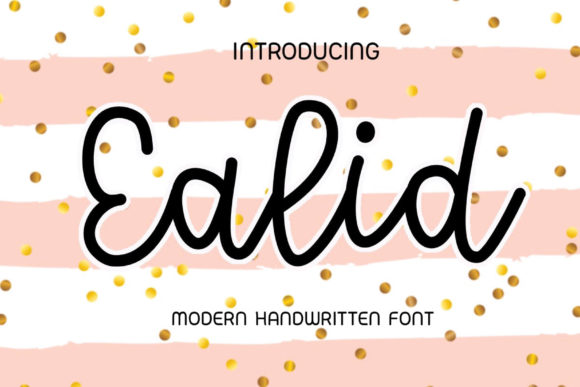
If you’ve ever picked the perfect font for a Cricut project only to find it won’t cut cleanly, the fix is almost always the same: turn the text into an SVG first. Cricut Design Space cuts vector paths, not pixels, so an SVG gives you crisp edges at any size.
Why SVG (and not PNG)?
A PNG is pixels — scale it up and edges go fuzzy, and Cricut has to trace it. An SVG is vector paths, the same math a font already uses. Cut an SVG and you get smooth, exact edges every time.
Step 1 – Pick your font
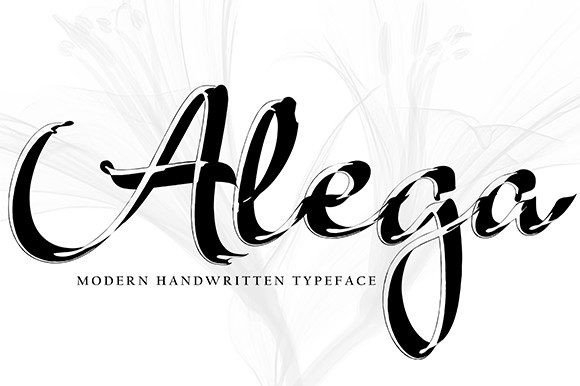
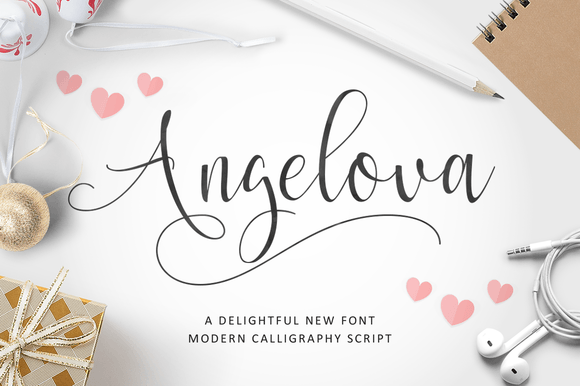
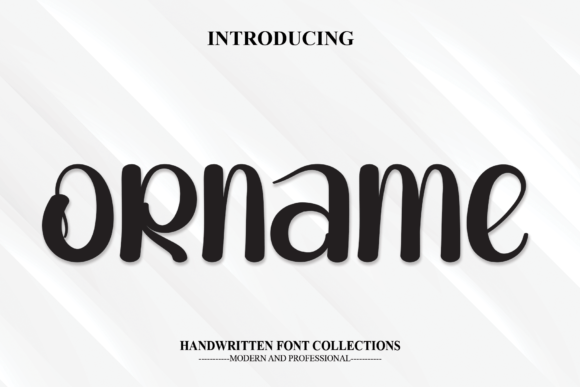
Choose a font with clean, connected shapes. Bold display and script fonts cut best. Browse our font categories for cut-friendly options.
Step 2 – Convert your text to SVG
You can convert text to a clean SVG right in your browser with this free font-to-SVG tool: type your word, pick the font, download an SVG with true vector outlines. It pulls from a library of free fonts too.
Step 3 – Upload to Cricut Design Space
- Click Upload in Design Space.
- Select your SVG and Upload Image.
- Add to canvas, size it, and Make It.
Tips for clean cuts
- Weld script letters so cursive cuts as one piece.
- Keep small text above ~3/4 inch.
- Test on scrap first.
That’s the whole workflow: pick a font, convert to SVG, upload, and cut.